Cable Management for Office Desks – Five Practical Ways to Keep Leads Tidy
 Save
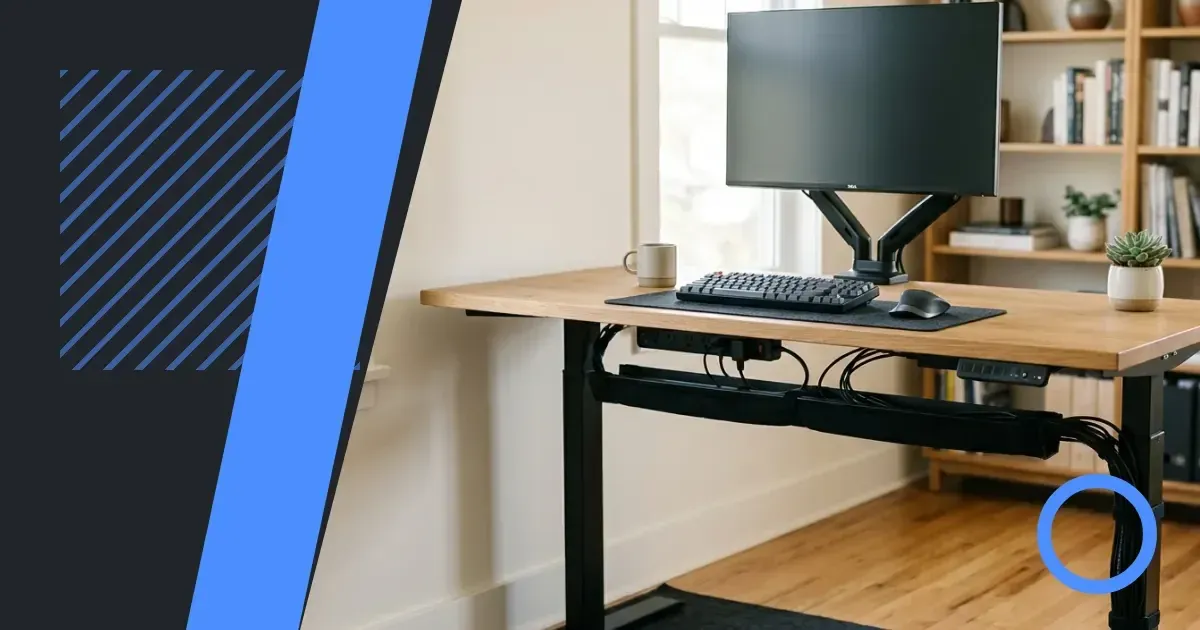
SaveCable management means routing power leads, USB connections and monitor cables so they stay out of sight and don't tangle. Proper cable management clears the work surface, reduces trip hazards and makes it easier to clean under and around the desk. Deskstor explains five practical methods that work without drilling into walls or desks.
Under-desk cable trays and adhesive clips
A cable tray fixes to the underside of the desk and holds multiple cables in one channel. Most trays use adhesive pads or clamp brackets that need no tools. The tray keeps power bricks and extension leads off the floor, and cables run straight from equipment to the sockets without drooping.
Adhesive cable clips stick to the desk edge or the back panel and hold individual cables in place. Use clips for cables that need to move occasionally, such as a phone charging lead. Space clips every twenty to thirty centimetres along the cable's path so it doesn't sag between them.
Choosing the right tray width
Measure the combined width of all cables where they bunch together. Add another two centimetres to allow for the clips or ties that hold them. A tray narrower than this width forces cables to overlap and makes it harder to identify a single lead later.
Cable sleeves and spiral wraps
A cable sleeve is a fabric or mesh tube that holds several cables together as one thick bundle. Sleeves come in different diameters; choose one that fits all your cables with a little room to spare. The bundle runs from the desk to the wall socket or power strip, hiding individual leads and making the setup look deliberate rather than accidental.
Spiral wraps coil around a group of cables and can be opened at any point to add or remove a single lead. They suit desks where equipment changes often. Both sleeves and wraps work best for vertical runs between the desk and the floor.
Cable boxes and desk grommets
A cable box is a lidded container that sits on the desk or the floor and hides a power strip and the tangle of plugs around it. Cables enter and leave through slots in the sides. The box keeps dust off the sockets and stops the power strip from sliding around.
A desk grommet is a round or oval fitting that sits in a hole drilled through the desktop. Cables pass through the grommet from the work surface to the space underneath. If drilling is not an option, a clip-on grommet attaches to the desk edge and achieves a similar result without permanent changes to the furniture.
Placing the grommet
Position the grommet behind the monitor or the area where most cables start. Cables should reach the grommet without stretching across the desk. A grommet too far from the equipment creates a long visible run that defeats the purpose.
Velcro ties and reusable cable straps
Velcro ties bundle cables together and can be opened and reused without leaving sticky residue. Use one tie for every group of cables that follows the same route. Ties keep bundles neat inside a tray or sleeve and make it easier to trace a single cable when something needs unplugging.
Cut ties to the length needed for each bundle. A tie that wraps more than twice around the cables adds unnecessary bulk. Label the ties with a marker or a small tag if the desk has multiple bundles running to different power sources.
Steps to manage cables on an existing desk
- Unplug all equipment and lay each cable flat on the floor so you can see the full length and the connections at each end.
- Group cables by destination: those going to the same power strip or wall socket form one bundle.
- Measure the distance from the desk to the socket and choose a tray, sleeve or set of clips that covers that distance without forcing cables to stretch.
- Fix the tray or clips to the underside of the desk, starting at the point closest to where cables leave the equipment and ending where they drop to the floor.
- Thread each cable through the tray or clip, leaving a small loop of slack near each device so it can be moved a few centimetres without pulling the cable tight.
- Bundle vertical runs with a sleeve or spiral wrap, and place a cable box around the power strip if it sits on the floor.
Comparing cable management methods
| Method | Best for | Permanent | Adjustable |
|---|---|---|---|
| Under-desk tray | Multiple cables, fixed setup | Adhesive or clamps | Limited once fixed |
| Cable sleeve | Vertical runs, temporary desks | No | Yes, open and rethread |
| Desk grommet | Clean work surface, monitor cables | Drilled version yes, clip-on no | No |
| Velcro ties | Bundles inside trays, frequent changes | No | Yes, fully reusable |
Labelling cables and power bricks
Label each cable at both ends with a small tag or a piece of tape marked with the device name. When several black cables run through the same tray, labels save time and prevent accidental unplugging. Write clearly and use waterproof ink if the desk is near a window or in a room that gets damp.
Power bricks often look identical. Mark each brick with the device it powers, or use different coloured cable ties on the leads so you can identify them at a glance. This matters most in shared workspaces where equipment moves between desks.
Keeping cables accessible for changes
Good cable management hides leads without making them impossible to reach. Leave enough slack in each bundle so a device can be unplugged and moved a short distance without dismantling the entire setup. Avoid twisting cables tightly around themselves or furniture legs, as this can damage the wires inside over time.
If a desk has a sit-stand mechanism, use a cable spine or a long vertical sleeve that moves with the desk. Fixed clips on the frame can snap cables when the desk rises, so check that all cable management parts flex or slide as the height changes.
Reducing the number of cables
Fewer cables mean less work to manage them. A wireless keyboard and mouse remove two leads from the desk. A monitor with a built-in USB hub reduces the number of cables running to the computer. A single multi-socket power strip with a long lead can replace several extension cords, consolidating plugs in one location.
Check whether any devices can share power adapters or charge from USB ports instead of separate wall plugs. Not all equipment allows this, but where it does, the reduction in cable count is immediate. For guidance on setting up the desk itself, see our article on choosing the right desk height.
Maintaining a tidy setup over time
Review the cable layout every few months. New equipment adds cables, and old ties can loosen. Pull out any cables for devices no longer in use and check that labels are still readable. Dust gathers in cable bundles and trays, so wipe them down with a dry cloth when cleaning the rest of the desk.
If the setup changes significantly, such as adding a second monitor or a printer, rebuild the cable management from the start rather than patching new leads into the existing arrangement. A fresh layout takes less time than untangling a poorly maintained one.
#Cable management #Desk organisation #Home office #Small office
Download PDF: Desk Cable Management Checklist PDF, 28 KB
Further reading
Frequently asked questions
What is the easiest way to hide cables under a desk without drilling?
An adhesive cable tray fixed to the underside of the desk holds multiple cables in one channel and needs no tools. Pair it with a cable sleeve for the vertical run to the floor, and the majority of leads stay out of sight.
How do I stop my desk cables from tangling when I move equipment?
Group cables into bundles with Velcro ties, leaving a small loop of slack near each device. The ties keep cables together, and the slack allows you to move equipment a short distance without pulling leads tight or creating new tangles.
Can I use cable management on a sit-stand desk that changes height?
Yes. Use a cable spine or a long vertical sleeve that moves with the desk, and avoid fixed clips on the frame that can snap cables when the desk rises. Check that all cable management parts flex or slide as the height changes.